Gifts and formats
Design a personalized mug, magnet or coaster set
A good small gift has one clear subject. Use AutoPrint to put your artwork on a mug, magnet, coaster set or another available home format, then review the size and placement.
 Crystal Holman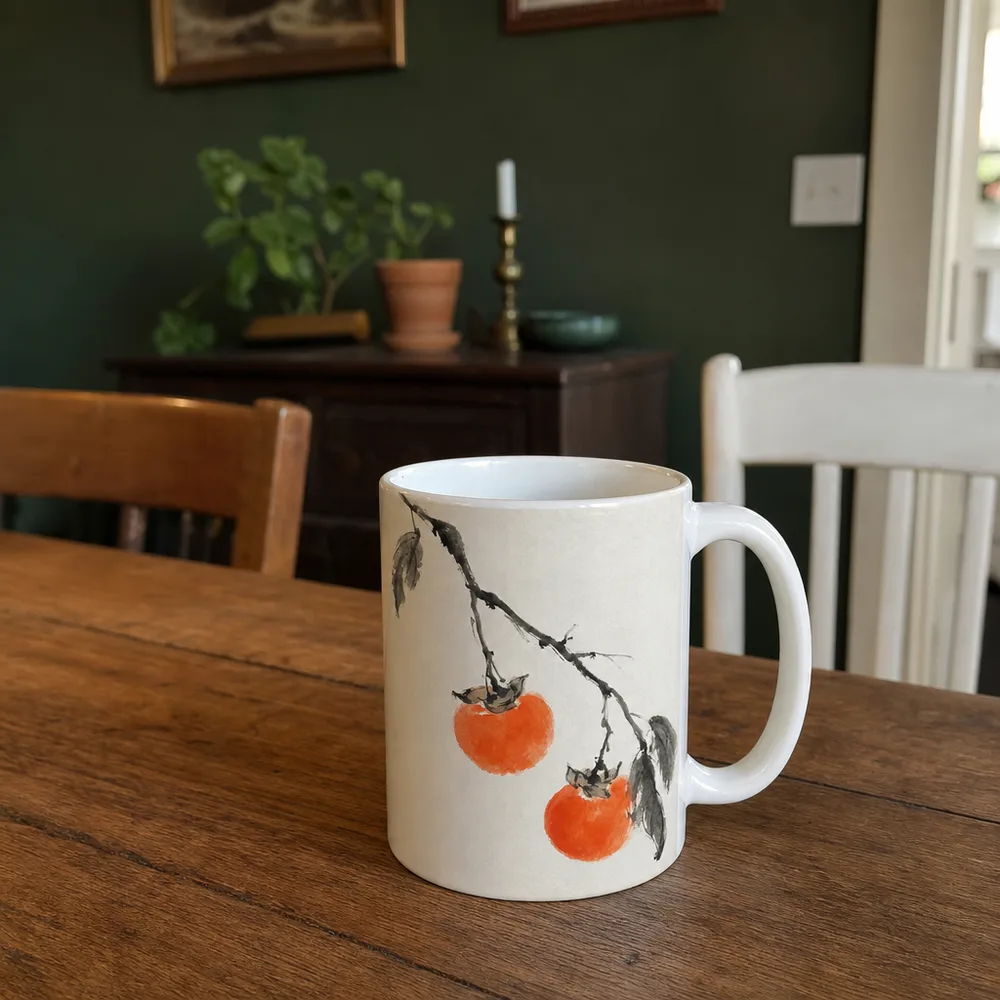
Design for a small viewing area
A pet’s face, a familiar place or a single graphic can remain readable on a small object. A crowded landscape and several lines of text may become hard to see. Keep the first design to one main idea.
For a mug, imagine both the shelf view and the view while someone holds it. A face that looks centered on a flat file may land somewhere different on the physical surface.
Choose the object for how it will be used
A magnet suits a small flat image. Coasters repeat the design across a set. A pillow gives a graphic more space, while a puzzle turns the image into an activity. These are distinct decisions, not interchangeable places to add a name.
Check the selected product page for the available size, finish and options. Do not infer dishwasher safety, food-contact use or care instructions from a preview image.
Use a brief the studio can act on
Try “a simple blue woodcut of our sleepy tabby, on a white mug.” The subject, palette, medium and product are clear. If you upload a real photo, inspect the face and crop before choosing the final object.
Check generated lettering character by character. If exact spelling is the most important part of the gift, prepare an accurate image yourself and use the upload path.
How do I put a pet photo on a mug?
Upload a clear original photo and choose the mug format. Check where the face falls on the curved preview, and whether the crop leaves the ears and eyes visible. A tighter image of the pet may work better than a full room scene reduced onto a small surface.
If the gift needs an exact name or date, prepare that lettering accurately in the source image before uploading it. Inspect the spelling and placement in the preview. Use the selected product’s description for material and care information; the image of the mug does not establish those details.
- Upload the original photo and choose the available mug.
- Check the face, crop and any lettering on the product preview.
- Review the selected product options and care information.
Common questions
- Can I print the same image on several products?
- You can try the image on different available formats. Inspect each product’s crop and options separately.
- Does a product preview prove how the object feels?
- No. A digital preview shows appearance and placement. Use the product description for the material and care details.